Start by creating a new shortcut( right click and select New> Shortcut). Then in the command line box, type (without the quotes.)
'C:\windows\rundll.exe user.exe,exitwindowsexec'
This Shortcut on clicking will restart Windows immediately without any Warning.
To create a Shortcut to Restarting Windows, type the following in the Command Line box:
'c:\windows\rundll.exe user.exe,exitwindows'
This Shortcut on clicking will shut down Windows immediately without any Warning.
Trick to place video/Animated picture as desktop wallpaper in windows 7
DreamScene is a application that enable windows 7 to use .wmv files on desktop screen as wallpaper. Hence it allows the user to apply any animation or any video as windows background.Process of using the application is quite simple and once everything is configured properly, animated desktop backgrounds can actually make using computers a real fun
Procedure:
1. Download Dreamscene here
2. After the download is complete, extract the DreamScrene-WR13.ZIP3. Now open Extracted folder and click on Windows 7 DreamScene Activator 1.1
4. Now click on Enable DreamScene, and now you are ready to use . wmv files as wallpaper.

5. whenever you want to place a video as wallpaper, go to C:\Windows\Web, and paste .wmv file there, and then right click on it > Set as desktop Background.

6. If you want to know how to convert any videos in .wmv format then click here
- After finishing the graphic work on all slides, Click the "Animation" Tab in menu bar and Select animation styles for your Slides.
- You can also give Transition time for any Pic or clip art of the slide also using "Custom Animation".
- Also select time interval in between 2 slides. For this select Box in front of 'Automatically After' written in very right of menu Bar. and give it some 'time'.

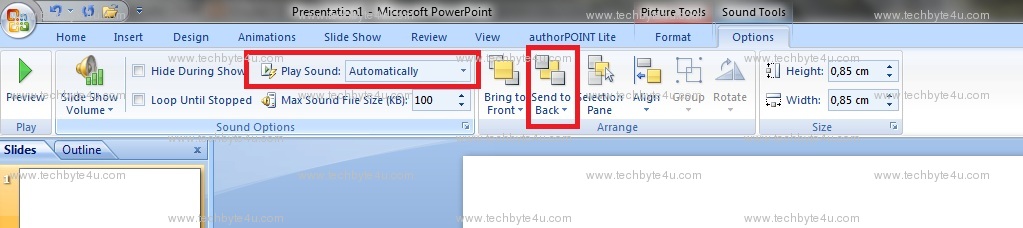
- You can also add any song or music that can be start playing automatically with the eCard. For that Go to "Insert" Tab, click on Sound, then select any song of your choice. Then it will ask you that how you want to be played this song: Automatically or after clicking. Click on Automatically if you want that the song should play Automatically with start of slides.
- Now a Speaker Symbol will appear. If will want to hide it, then click on "send to back" after selecting that symbol.
- Now select option "Play Across Slides" in "Play Sound" drop down if you want to play the selected song during all Slides.
Windows Shortcut keys
- CTRL+C (Copy)
- CTRL+X (Cut)
- CTRL+V (Paste)
- CTRL+Z (Undo)
- Delete (Delete)
- Shift+Delete (Delete the selected item permanently without placing the item in the Recycle Bin)
- CTRL while dragging an item (Copy the selected item)
- CTRL+Shift while dragging an item (Create a shortcut to the selected item)
- F2 key (Rename the selected item)
- CTRL+RIGHT ARROW (Move the insertion point to the beginning of the next word)
- CTRL+LEFT ARROW (Move the insertion point to the beginning of the previous word)
- CTRL+DOWN ARROW (Move the insertion point to the beginning of the next paragraph)
- CTRL+UP ARROW (Move the insertion point to the beginning of the previous paragraph)
- CTRL+Shift with any of the arrow keys (Highlight a block of text)
- Shift with any of the arrow keys (Select more than one item in a window or on the desktop, or select text in a document)
- CTRL+A (Select all)
- F3 key (Search for a file or a folder)
- Alt+Enter (View the properties for the selected item)
- Alt+F4 (Close the active item, or quit the active program)
- Alt+Enter (Display the properties of the selected object)
- Alt+Spacebar (Open the shortcut menu for the active window)
- CTRL+F4 (Close the active document in programs that enable you to have multiple documents open simultaneously)
- Alt+Tab (Switch between the open items)
- Alt+ESC (Cycle through items in the order that they had been opened)
- F6 key (Cycle through the screen elements in a window or on the desktop)
- F4 key (Display the Address bar list in My Computer or Windows Explorer)
- Shift+F10 (Display the shortcut menu for the selected item)
- Alt+Spacebar (Display the System menu for the active window)
- CTRL+ESC (Display the Start menu)
- Alt+Underlined letter in a menu name (Display the corresponding menu)
- Underlined letter in a command name on an open menu (Perform the corresponding command)
- F10 key (Activate the menu bar in the active program)
- RIGHT ARROW (Open the next menu to the right, or open a submenu)
- LEFT ARROW (Open the next menu to the left, or close a submenu)
- F5 key (Update the active window)
- Backspace (View the folder one level up in My Computer or Windows Explorer)
- ESC (Cancel the current task)
- Shift when you insert a CD-ROM into the CD-ROM drive (Prevent the CD-ROM from automatically playing)
Dialog Box Keyboard Shortcuts
- CTRL+Tab (Move forward through the tabs)
- CTRL+Shift+Tab (Move backward through the tabs)
- Tab (Move forward through the options)
- Shift+Tab (Move backward through the options)
- Alt+Underlined letter (Perform the corresponding command or select the corresponding option)
- Enter (Perform the command for the active option or button)
- Spacebar (Select or clear the check box if the active option is a check box)
- Arrow keys (Select a button if the active option is a group of option buttons)
- F1 key (Display Help)
- F4 key (Display the items in the active list)
- Backspace (Open a folder one level up if a folder is selected in the Save As or Open dialog box)
Microsoft Natural Keyboard Shortcuts
- Win (Display or hide the Start menu)
- Win+BREAK (Display the System Properties dialog box)
- Win+D (Display the desktop)
- Win+M (Minimize all of the windows)
- Win+Shift+M (Restore the minimized windows)
- Win+E (Open My Computer)
- Win+F (Search for a file or a folder)
- CTRL+Win+F (Search for computers)
- Win+F1 (Display Windows Help)
- Win+ L (Lock the keyboard)
- Win+R (Open the Run dialog box)
- Win+U (Open Utility Manager)
Accessibility Keyboard Shortcuts
- Right Shift for eight seconds (Switch FilterKeys either on or off)
- Left Alt+left Shift+PRINT SCREEN (Switch High Contrast either on or off)
- Left Alt+left Shift+NUM LOCK (Switch the MouseKeys either on or off)
- Shift five times (Switch the StickyKeys either on or off)
- NUM LOCK for five seconds (Switch the ToggleKeys either on or off)
- Win +U (Open Utility Manager)
Windows Explorer Keyboard Shortcuts
- END (Display the bottom of the active window)
- HOME (Display the top of the active window)
- NUM LOCK+* (Display all of the subfolders that are under the selected folder)
- NUM LOCK++ (Display the contents of the selected folder)
- NUM LOCK+- (Collapse the selected folder)
- LEFT ARROW (Collapse the current selection if it is expanded, or select the parent folder)
- RIGHT ARROW (Display the current selection if it is collapsed, or select the first subfolder)
Shortcut Keys For Character Map
- After you double-click a character on the grid of characters, you can move through the grid by using the keyboard shortcuts:
- RIGHT ARROW (Move to the right or to the beginning of the next line)
- LEFT ARROW (Move to the left or to the end of the previous line)
- UP ARROW (Move up one row)
- DOWN ARROW (Move down one row)
- PAGE UP (Move up one screen at a time)
- PAGE DOWN (Move down one screen at a time)
- HOME (Move to the beginning of the line)
- END (Move to the end of the line)
- CTRL+HOME (Move to the first character)
- CTRL+END (Move to the last character)
- Spacebar (Switch between Enlarged and Nor mal mode when a character is selected)
Microsoft Management Console (MMC) Main Window Keyboard Shortcuts
- CTRL+O (Open a saved console)
- CTRL+N (Open a new console)
- CTRL+S (Save the open console)
- CTRL+M (Add or remove a console item)
- CTRL+W (Open a new window)
- F5 key (Update the content of all console windows)
- Alt+Spacebar (Display the MMC window menu)
- Alt+F4 (Close the console)
- Alt+A (Display the Action menu)
- Alt+V (Display the View menu)
- Alt+F (Display the File menu)
- Alt+O (Display the Favorites menu)
MMC Console Window Keyboard Shortcuts
- CTRL+P (Print the current page or active pane)
- Alt+- (Display the window menu for the active console window)
- Shift+F10 (Display the Action shortcut menu for the selected item)
- F1 key (Open the Help topic, if any, for the selected item)
- F5 key (Update the content of all console windows)
- CTRL+F10 (Maximize the active console window)
- CTRL+F5 (Restore the active console window)
- Alt+Enter (Display the Properties dialog box, if any, for the selected item)
- F2 key (Rename the selected item)
- CTRL+F4 (Close the active console window. When a console has only one console window, this shortcut closes the console)
Remote Desktop Connection Navigation
- CTRL+Alt+END (Open the m*cro$oft Windows NT Security dialog box)
- Alt+PAGE UP (Switch between programs from left to right)
- Alt+PAGE DOWN (Switch between programs from right to left)
- Alt+INSERT (Cycle through the programs in most recently used order)
- Alt+HOME (Display the Start menu)
- CTRL+Alt+BREAK (Switch the client computer between a window and a full screen)
- Alt+Delete (Display the Windows menu)
- CTRL+Alt+- (Place a snapshot of the active window in the client on the Terminal server clipboard and provide the same functionality as pressing PRINT SCREEN on a local computer.)
- CTRL+Alt++ (Place a snapshot of the entire client window area on the Terminal server clipboard and provide the same functionality as pressing Alt+PRINT SCREEN on a local computer.)
Internet Explorer Navigation
- CTRL+B (Open the Organize Favorites dialog box)
- CTRL+E (Open the Search bar)
- CTRL+F (Start the Find utility)
- CTRL+H (Open the History bar)
- CTRL+I (Open the Favorites bar)
- CTRL+L (Open the Open dialog box)
- CTRL+N (Start another instance of the browser with the same Web address)
- CTRL+O (Open the Open dialog box, the same as CTRL+L)
- CTRL+P (Open the Print dialog box)
- CTRL+R (Update the current Web page)
- CTRL+W (Close the current window)
WINDOWS PASSWORD BYPASS TOOLS

7 tools to Bypass/crack/ Reset Windows 7
password, is a frequently asked question over the web. If you forgot your Windows 7
administrator password, then you can not login into ur system and cant reset
its password if you dont have a windows password reset disk.
Here i am mentioning about
some windows password recovery tools that
can help you recovering ur lost windows password.
1. Windows
Password Breaker:
Windows Password Breaker is
the most popular commercial Windows password recovery tool. It helps
you create a bootable password reset CD/DVD or USB flash driver to reset forgotten Windows
administrator and other user accounts password for Windows 7 under DOS. This
tool is not free. I am giving only the link of trial version.
Download Now
2.
Ophcrack:(Free)
Ophcrack is a free Windows
password cracker based on rainbow tables. It comes with a Graphical
User Interface and runs on multiple platforms. It use Brute-force module
for simple passwords. works with Windows 7, XP and Vista. Any password with
less than 14 characters and having any combination of numbers, letters,
capital letters can be cracked easily. Like Windows password Breaker, you
boot to a burned CD created with Ophcrack live cd.
Download Now
3. Windows
Password Unlocker:
Similar to Windows
Password Breaker, it is allows you to instantly crack Windows 7 password but
except this it enables you to reset password under Win PE instead of DOS. In
this you need to burn a bootable password recovery CD/DVD/USB flash drive.
Download Now
4. Offline
NT Password & Registry Editor:(Free)
This tool erases your Windows
password instead of recovering it. Same as above three tools this also require
a bootable cd. It works with windows 7, vista, XP.
Download
Now
5. PC Login
Now:(Free)
It works same as Offline NT
Password and recovery Editor, it deletes the current passowrd and enable you to
login without any password. Works with windows 7, Vista, XP.
Download Now
6. Kon-Boot:(Free)
Works same as above two
mentioned. Works for windows and linux too.
Download Now
7. Cain &
Abel:(Free)
Its concept is similar to
ophcrack but it needs to access an administrator account to crack
password of any other account on a system.
Download Now


